Many organizations want an internal news feed where only authorized people can publish announcements. In Google Workspace, a Google Chat space of the Announcements type can be used for this. This guide covers creation, permissions, and everyday use.
What is it for?
- Sharing internal news, leadership announcements, and change notices.
- Only space owners and managers post in the main conversation.
- Members can react and can also reply to announcements unless replies are restricted. Announcements type alone does not make a channel completely read-only.
According to Google Chat's official overview, an announcement space can be created with a work or school account; a collaborative space is available with a personal Google Account. The screenshots preserve the source document's interface, so some labels may differ from the current interface.
1. Create a space
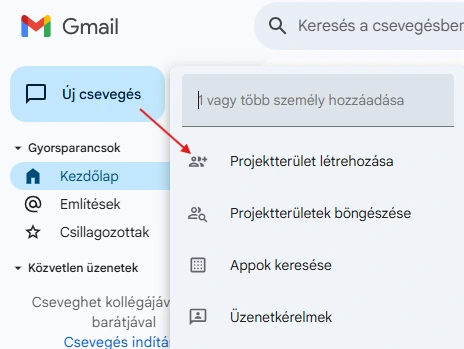
- Open Gmail or Google Chat.
- On the left, select New chat → Create a space.
- Give it a name, such as Internal announcements.
- Select Announcements as the type.
- For access, Private is recommended for an internal news feed. Do not allow external members to join if the content is intended exclusively for your organization.
- Click Create.
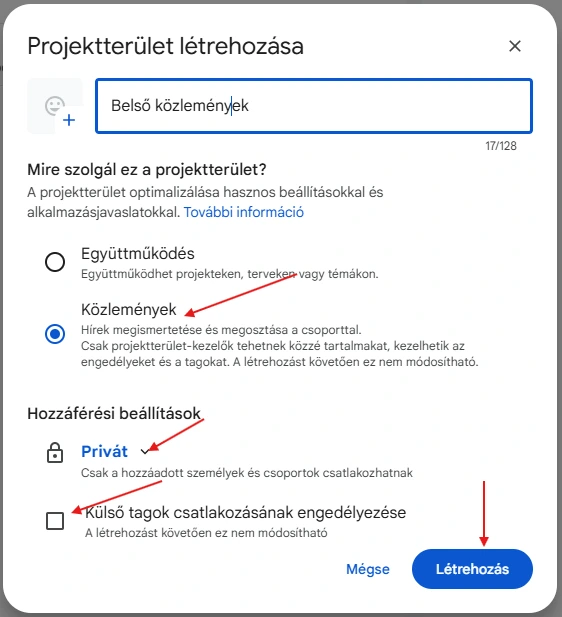
The announcement-space type cannot be changed after creation. Check the external membership option during setup.
2. Configure permissions
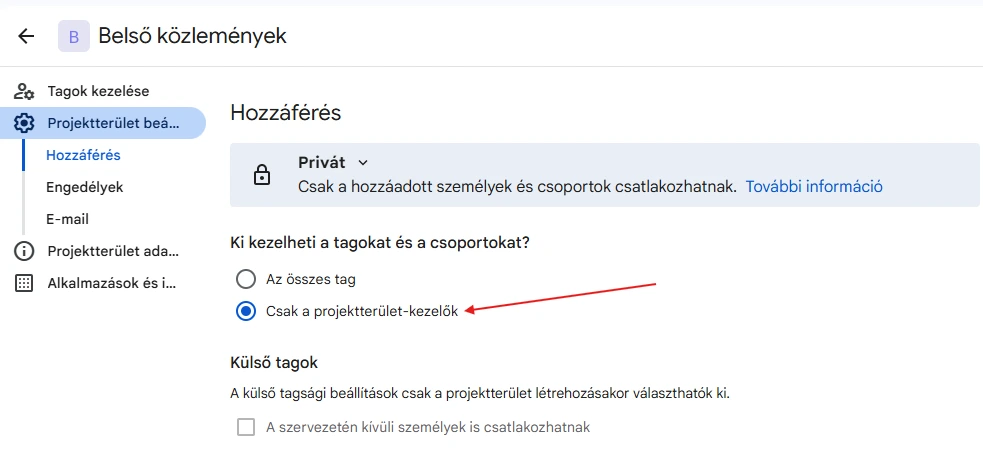
Click the space name, then select Space settings.
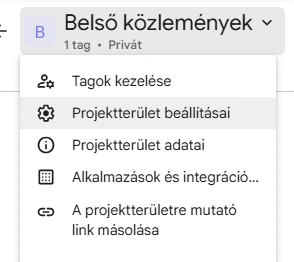
Under Access, set:
- Who can manage members and groups? → Space managers only.
- Make sure the space is private and external members are not allowed to join.
Under Permissions, for an internal one-way news feed, restrict:
- Reply to messages → Space managers only, if you also want to prevent member comments.
- Edit space details → Space managers only.
- Turn history on/off → Space managers only.
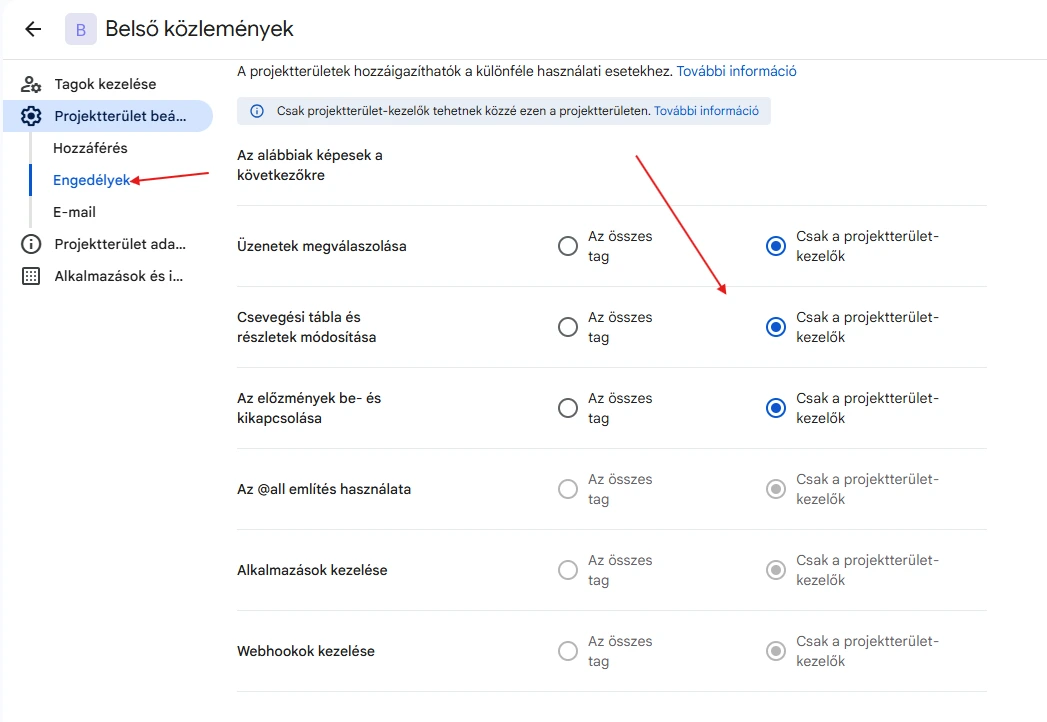
This lets managers publish announcements while members read and react. Check the reply restriction using a member account. For details on permissions, see the official guide to space settings.
3. Invite members
- Invite the users or groups who need to see the announcements.
- New members cannot publish a new announcement in the main conversation; whether they can reply depends on the setting in the previous section.
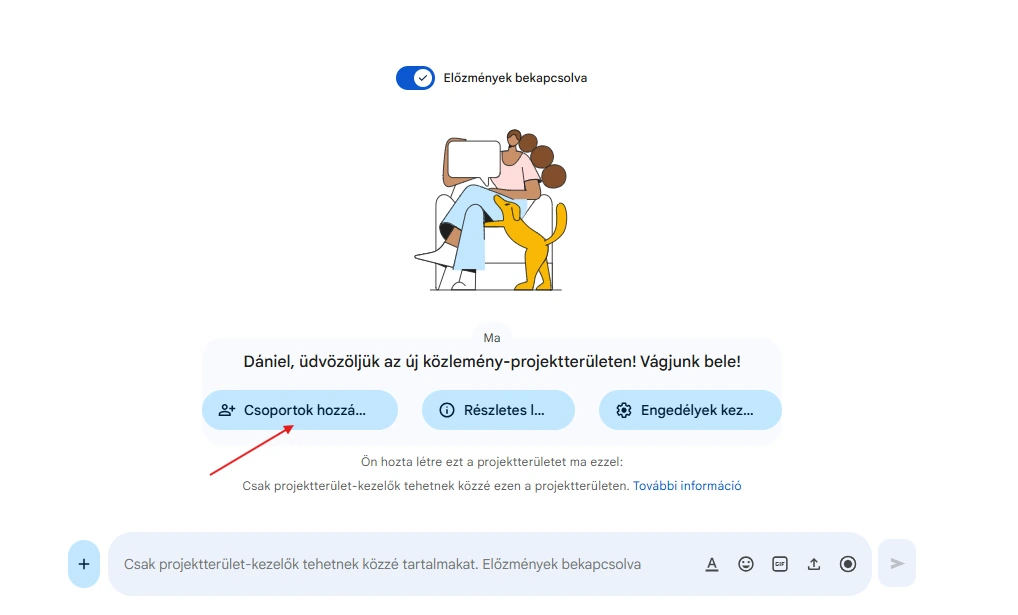
4. Designate senders
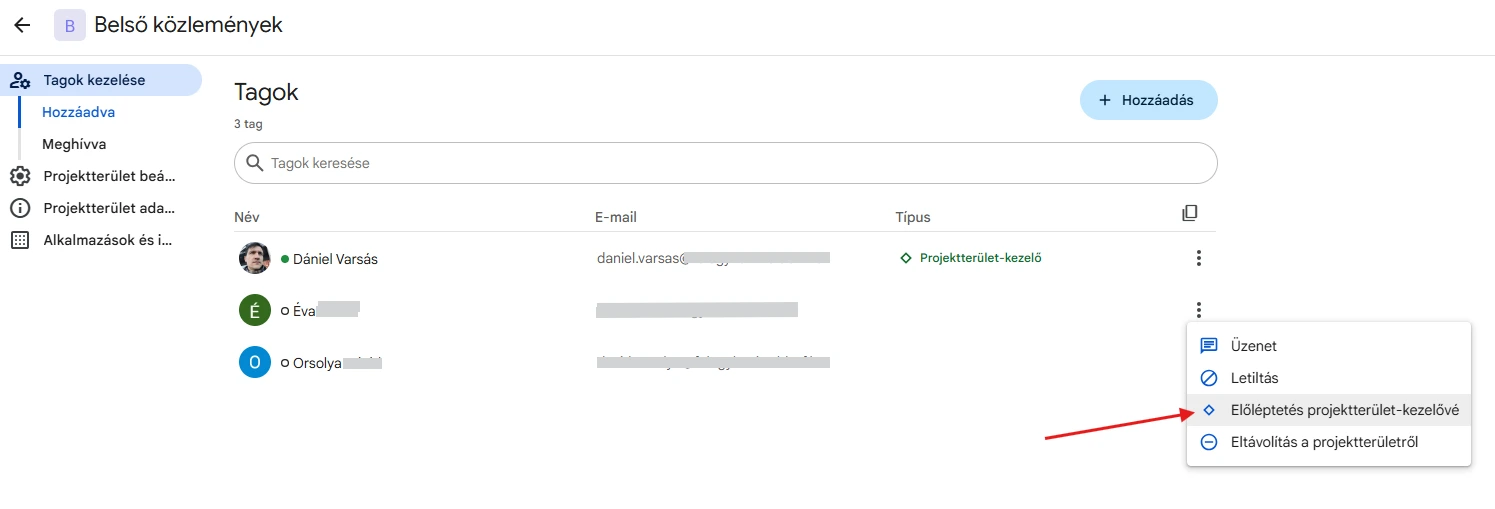
Open Manage members.
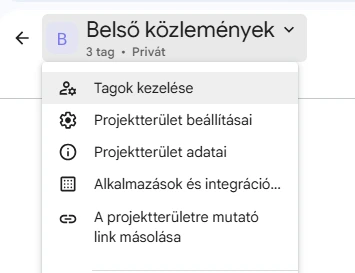
In the person's three-dot menu, select Promote to space manager for anyone who may send announcements. Grant manager permissions only to people who need them for their role.
Everyday-use tips
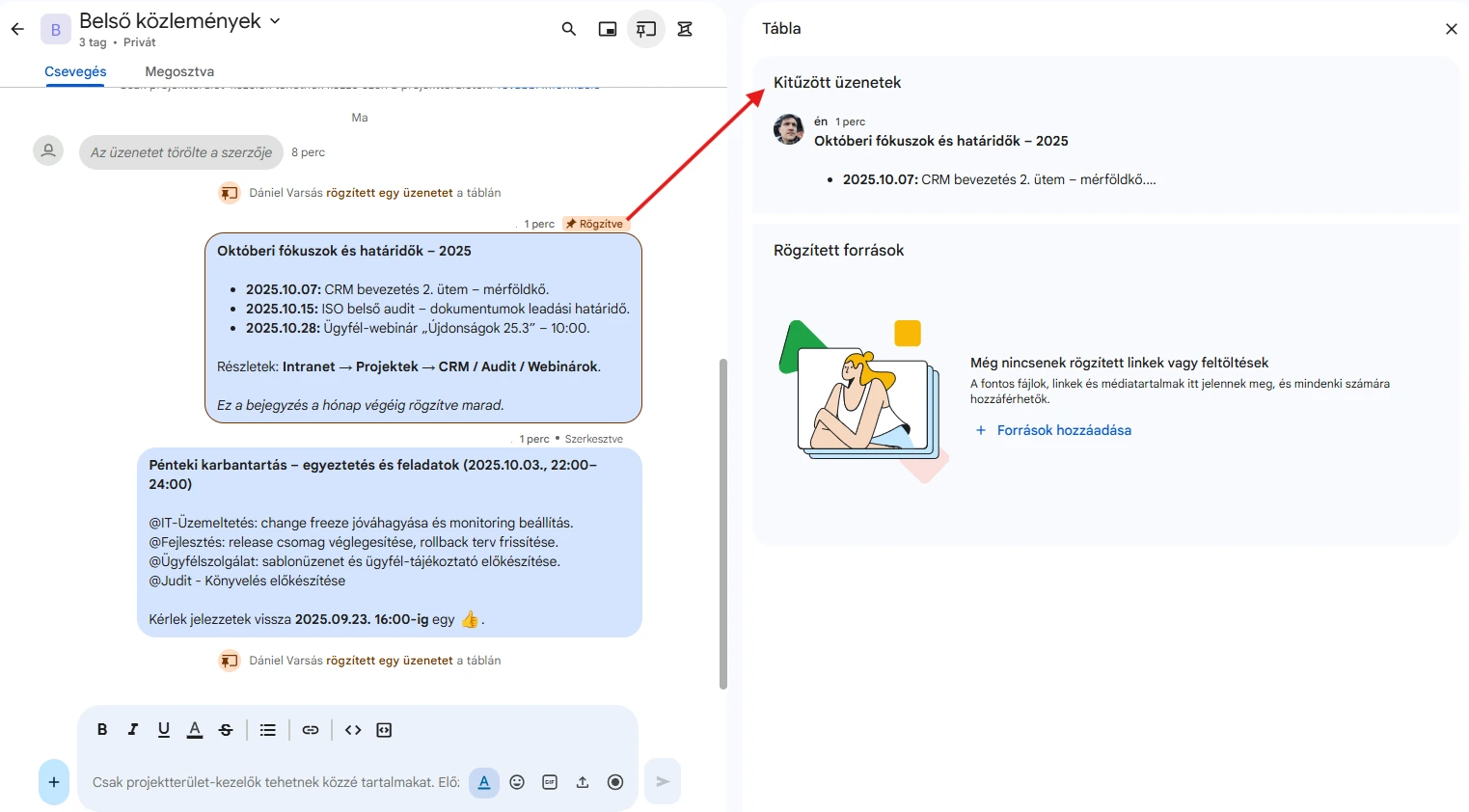
Pin important announcements
Pin important messages so they are easy to find among the space's pinned items. Pinning does not mean the message will remain at the top of the conversation in every view.
Mentions and clear tasks
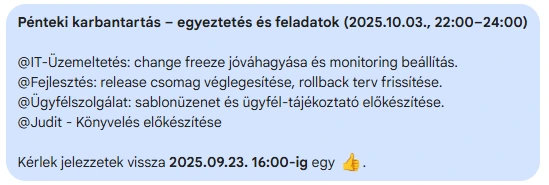
Use @mentions to draw relevant people's attention. Mention a team or group only when the interface offers that option.
The following example retained from the source is a fictional historical sample announcement, not a current maintenance notice:
Friday maintenance – coordination and tasks (2025.10.03, 22:00–24:00)
@IT Operations: approve the change freeze and configure monitoring.
@Development: finalize the release package and update the rollback plan.
@Customer Support: prepare the template message and customer notice.
@Judit: prepare accounting.Please respond by 2025.09.23 at 16:00 with a 👍 reaction.
Consistent text labels
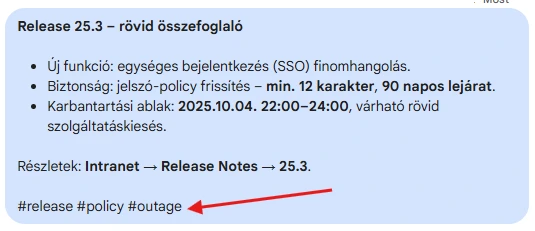
Use consistent text labels, such as #release, #policy, #outage, to make searching easier. These are not separate Chat tagging features.
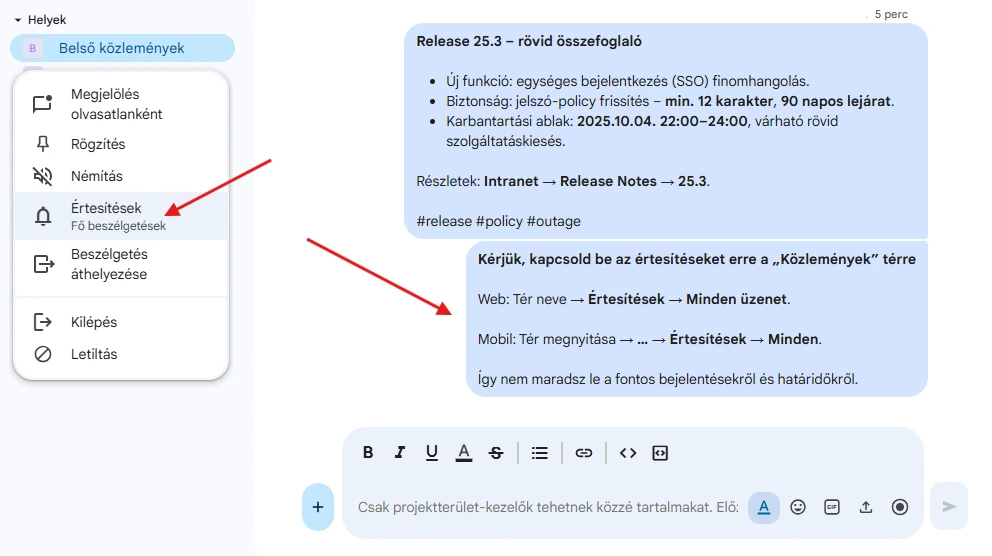
Release 25.3 – brief summary (historical example)
- New feature: fine-tuning of single sign-on (SSO).
- Security: password policy update – the source example mentions a minimum of 12 characters and a 90-day expiry. This is not a general Google Workspace requirement or a security recommendation; use your organization's own approved policy.
- Maintenance window: 2025.10.04 22:00–24:00, with a brief service outage expected.
Details: Intranet → Release Notes → 25.3.
#release #policy #outage
Notifications
Ask members to check the space's notification settings and choose the notification level appropriate to their work.
When to use Google Groups instead
If you need email-newsletter-style distribution and email archiving, use Google Groups instead, with appropriately restricted posting permissions. For quick internal announcements, a Chat Announcements space is a suitable choice.
Quick checklist
- Private space of the Announcements type created.
- Only owners and managers can post in the main conversation.
- Member replies restricted separately if a read-only news feed is needed.
- Only authorized managers can manage members.
- Appropriate members invited; designated senders promoted to manager.
- Notifications checked; important announcements pinned.
- Member permissions tested with a non-manager account.
This is how to create an orderly, easy-to-follow internal news channel.