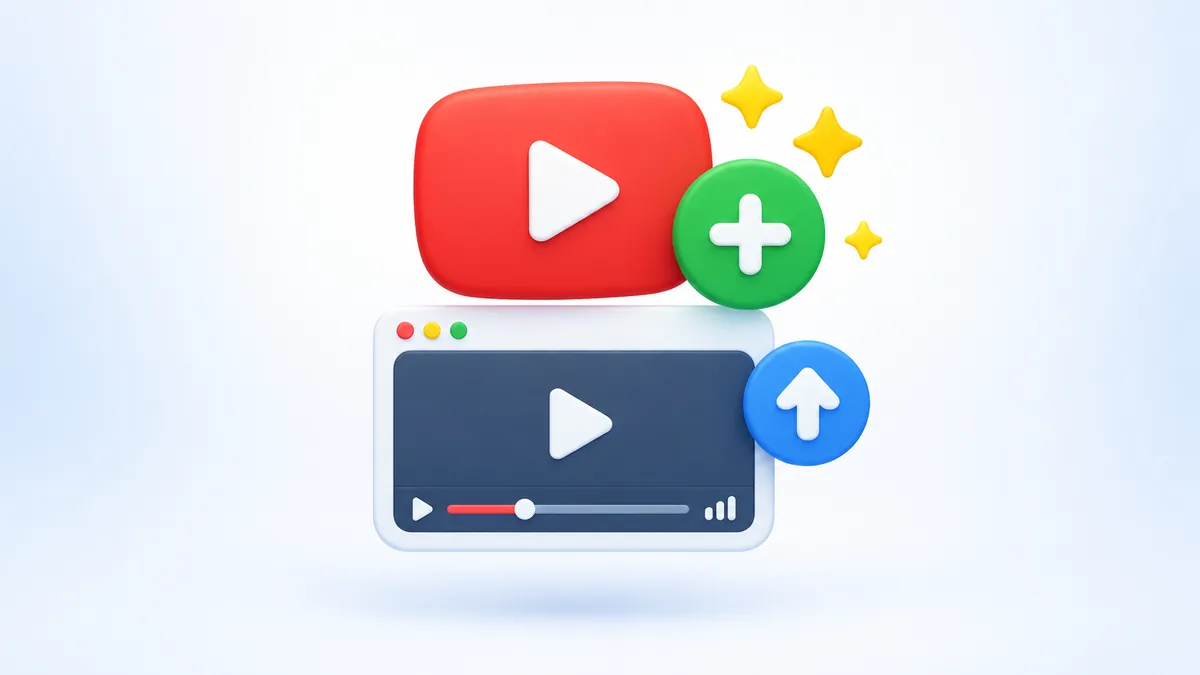
If your current YouTube channel stays with another organization (for example after a brand or business unit is handed over), your company can start a completely new channel of its own with a Brand Account linked to its Google Workspace account, and upload the videos it is entitled to publish. This guide covers that process. If you want to keep the existing channel and manage it as a company, see Transferring an existing YouTube channel and linking it to a Brand Account.
Technical review: November 2026, based on YouTube and Google Account help (Brand Accounts). Menu items may change.
What can't be transferred?
Important: with a new channel and re-uploaded videos, the old channel's subscribers and the videos' previous views, likes, comments and statistics are not transferred. New videos get new URLs. Video files and descriptions you are entitled to use can be uploaded again.
1. Preparation
- Choose a long-lasting company Google Account (for example media@example.com) that will be the Brand Account's primary owner. Don't use a departing employee's personal Gmail address.
- A Google Group or email alias isn't an account you can sign in with; choose a real Google Account as owner.
- Designate a second trusted company owner. Both accounts need 2-Step Verification. Don't share passwords.
- Prepare the approved channel name, an available @handle (the old one isn't guaranteed to be available), profile picture, banner and description.
- Rights: record in writing which videos the company may republish. Handing over the old channel doesn't automatically grant republishing rights. Before losing access, save original files and metadata of videos you may legitimately keep.
2. Allow YouTube in Workspace
The administrator checks Admin console → Apps → Additional Google services → YouTube → Service status to confirm YouTube is on for the user's organizational unit. This grants access, not ownership. According to Google, a separate Brand Accounts switch exists in Education editions; its absence in business editions isn't an error.
3. Create a new channel with a Brand Account
- In a separate browser profile, sign in with the chosen company account and check the profile picture to confirm it is active.
- Open the channel list and choose Create a channel, using the business name (not as a personal channel).
- Enter the name, @handle and profile picture, then create the channel. This also creates a new Brand Account.
- In YouTube Studio, confirm the new channel is active and note its link.
Stop rule: if you are offered moving, replacing or deleting the old channel, stop. This process only creates a new channel.
4. Owners and editors
- On Brand Accounts, select the new Brand Account → Manage permissions → Invite new users, and add the second company account with the Owner role.
- Invite day-to-day colleagues in Studio: Settings → Permissions → Invite. Editor is recommended for uploads, Manager for broader management; grant ownership only when justified.
- To change the primary owner later, the new owner must have been an owner for at least 7 days.
5. Branding and verification
Set the profile picture, banner, description and, if needed, public contact details. Some features (such as videos longer than 15 minutes or custom thumbnails) require phone verification of the channel.
6. Re-upload videos
- In Studio, confirm the new channel is active, then choose Create → Upload videos.
- For each video, set the title, description, thumbnail, playlist and audience setting (made for kids or not), and review the checks warnings.
- Save first uploads as Private, check them, then make them Public or schedule them. An Unlisted video can be watched by anyone with the link; it isn't the same as Private.
- Keep a table of old and new video links.
Checklist
- The new channel opens publicly with the approved name and branding
- Two company owners with 2-Step Verification; editors use their own accounts
- A test video uploaded and checked
- New links recorded; website, social profiles and embeds update planned
- Republishing rights documented
Common issues
- Can't create a channel: check the active account and that YouTube is allowed.
- @handle taken: choose another approved handle.
- Copyright warning: check your rights; don't circumvent the restriction.
Need help launching your company YouTube channel? Contact the Cloud Tender team.