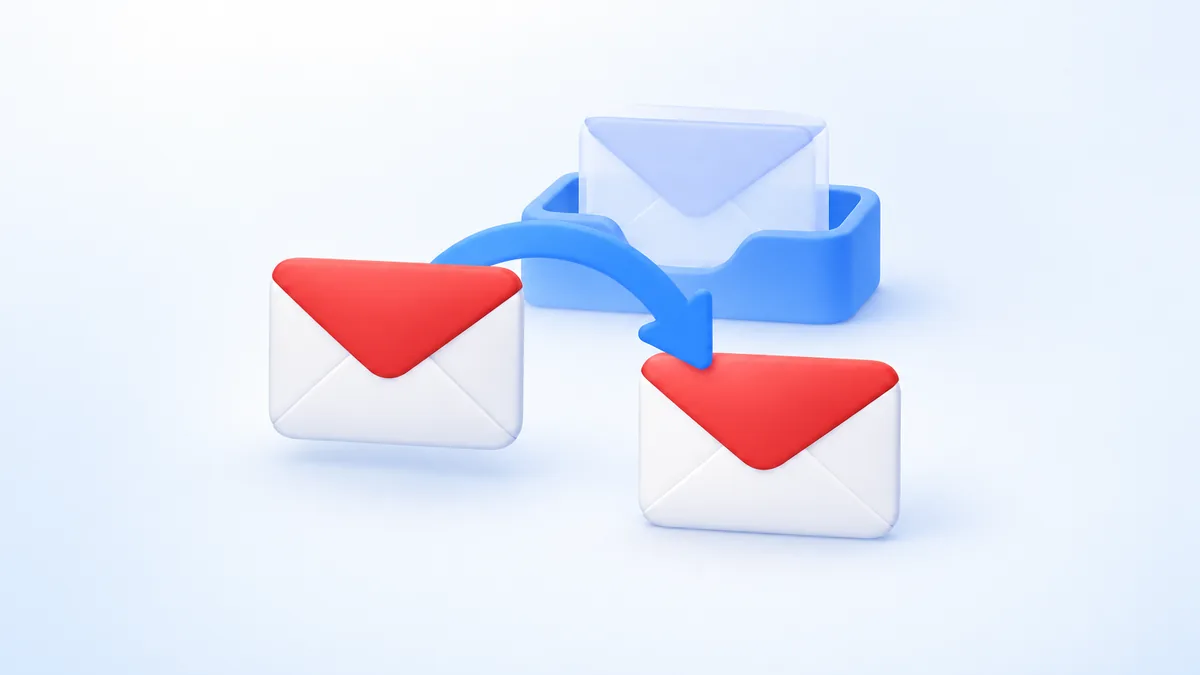
Gmail automatic forwarding sends new incoming messages to another address while the original stays in your Gmail mailbox. This guide covers the user setting and the restrictions that apply in Google Workspace organizations.
Technical review: November 2026, based on Gmail Help "Automatically forward Gmail messages to another account".
Before you start
- Automatic forwarding sends only new messages, not earlier ones. Moving older mail requires a migration (see related guides).
- Spam is not forwarded.
- In a Google Workspace account, your administrator can turn off automatic forwarding to external addresses. If the setting is missing or can't be saved, contact your administrator.
- Forwarding to an external address can carry privacy risks: use it only in line with your organization's policies.
1. Add a forwarding address
- On a computer, open Gmail and sign in to the account you want to forward from.
- Click the gear icon, then See all settings.
- Open the Forwarding and POP/IMAP (or Forwarding) tab.
- In the Forwarding section, click Add a forwarding address, enter the destination and confirm.
- A verification message is sent to the destination: open it and click the confirmation link.
2. Turn on forwarding and keep the original
- Return to the Forwarding and POP/IMAP tab and refresh the browser.
- Select Forward a copy of incoming mail to and choose the verified address.
- For the Gmail copy, choose Keep Gmail's copy in the Inbox (recommended by Google).
- At the bottom, click Save Changes.
To forward only certain messages, turn off automatic forwarding and create a filter with the Forward it action.
Verification
- Destination address verified
- A test message reached the destination and is also in the Gmail Inbox
- No filter deletes or archives the messages
Turning it off
On the Forwarding and POP/IMAP tab, select Disable forwarding, then save changes.
Common issues
- No verification email: check the destination's spam folder and the address spelling.
- Setting greyed out or missing: your Workspace administrator may restrict forwarding.
- Older messages don't appear at the destination: forwarding applies only to new mail.
Related guides
- Migrating email from another Google Workspace account
- Aliases and secondary domains in Google Workspace
Questions about Gmail settings? Contact the Cloud Tender team.