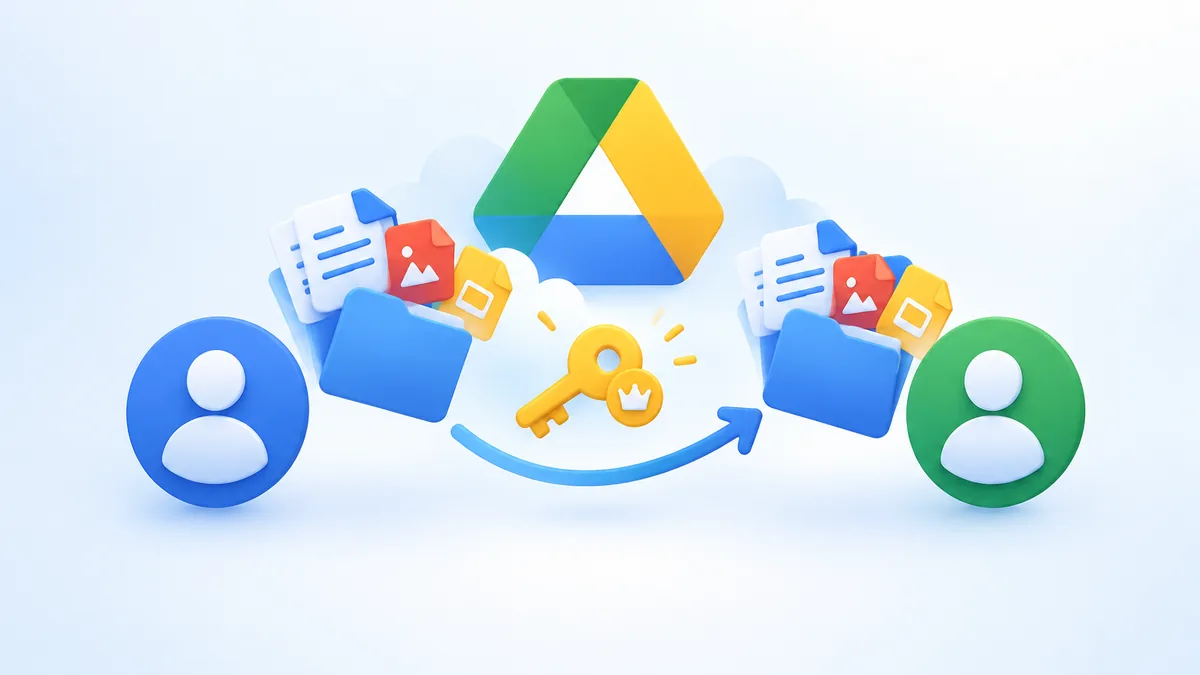
When a colleague changes role or leaves, their Google Drive files often need to be handed over to another user within the same Google Workspace organization. This guide covers ownership transfer within an organization and separates it from moving files to another organization or from a personal account.
Technical review: November 2026, based on Google Drive Help "Make someone else the owner of your file".
Which situation are you in?
| Situation | Solution |
|---|---|
| Within the same organization | Ownership transfer, admin bulk transfer or a shared drive (this guide) |
| To another Workspace organization | Ownership can't be transferred; copying or an admin-run migration is needed |
| From a personal account to a work account | See Moving files from personal Google Drive to a company account |
Important to know
Warning: if you transfer ownership of a folder, you still own the files inside it. Files must be selected and transferred separately.
- You can only transfer ownership to someone you have already shared the file with.
- From a work account, ownership can only be transferred to a user in your own organization; according to Google, the new owner doesn't need to accept.
- After the transfer, the file counts toward the new owner's storage and you remain an editor until the new owner removes you.
- Files in "Shared with me" can only be transferred by their owner. Making a copy creates a new file: comments, version history and sharing links are not carried over.
1. Transfer file ownership
- Open Google Drive with the current owner's account.
- Share the files (or folder) with the new owner as an editor.
- Select the files to transfer (you can select several), then click Share.
- Next to the new owner's name, open the drop-down and choose Transfer ownership, then confirm.
- Repeat for files in subfolders. With many files, changes may take a while to appear.
2. Admin bulk transfer
When a user leaves, a Google Workspace administrator can transfer ownership of all their Drive files to another user at once in the Admin console (Data transfer). This is more reliable than manual transfer and doesn't need the departing user's help. Always do it before deleting the user.
3. Recommended alternative: shared drives
Files in a shared drive belong to the organization, so a colleague leaving doesn't affect them. Moving files into a shared drive with the right permissions transfers ownership to the organization. Organizational policies may restrict such moves. Details: Google Drive guide – shared drives.
Verification
- In the new owner's account, they appear as owner of the files (including files inside folders)
- Sharing and access are as expected
- The original owner's account is deleted only after verification
Frequently asked questions
Is transferring the folder enough? No, files inside the folder must be transferred separately.
Can I transfer to another company's account? No, from a work account ownership can only be transferred within your own organization.
Need help organizing your Drive data? Contact the Cloud Tender team.