Google Drive is more than simple cloud storage: it can also be used to create, share, and collaboratively edit documents, spreadsheets, and presentations. In many organizations, however, files used for teamwork still remain in individual employees’ My Drive.
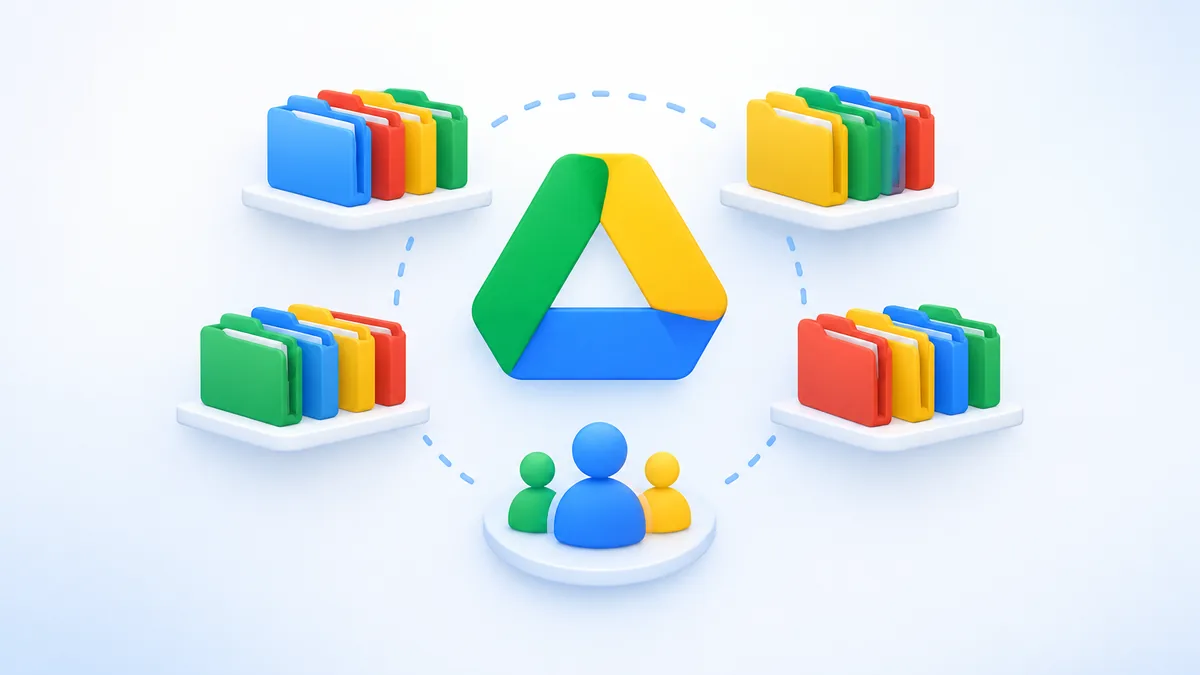
A shared drive helps keep business content under organizational ownership. Getting good results requires an appropriate folder structure, access permissions, and administrator settings—not simply creating a new drive.
My Drive and shared drives
| Aspect | My Drive | Shared drive |
|---|---|---|
| Ownership | Typically the user who creates/uploads the file | The organization, not an individual |
| Departing employee | The administrator must plan a handover and retention process | Content created/uploaded there remains available to the team |
| Access | Based on file and folder sharing | Based on drive members’ roles and permitted individual sharing |
| Typical use | Personal working drafts and materials with a justified need for restricted access | Team projects and shared operational documents |
My Drive is like a personal work drawer, while a shared drive is more like a jointly managed office cabinet. Not everyone can put in or take out anything they want: permissions determine which actions are allowed.
A shared drive is not a backup or a guarantee against data loss. Deletion, incorrect permissions, retention rules, and other risks still need to be managed. The advantage is that files do not depend solely on their creator’s account remaining active.
1. Use basic features thoughtfully
- Upload files or create documents, spreadsheets, and presentations in Google Docs, Google Sheets, and Google Slides.
- When sharing, distinguish between the Viewer, Commenter, and Editor roles.
- Having a link does not necessarily grant access; check the link-sharing rules.
- Do not share an entire folder if access to a single file is sufficient. Using groups can simplify the maintenance of team permissions.
2. Create a shared drive
Subscription and administrator restrictions
Google’s current list of supported editions includes Business Starter, Business Standard, and Business Plus, alongside other business and education plans. Some advanced sharing restrictions are not available in Starter. It is therefore incorrect to say either that Starter has no shared drives at all or that every edition includes every control.
Administrators can control drive creation, external access, and other features. Check your organization’s license and configuration against Google’s current documentation on editions and settings.
Practical steps
- Define the drive’s purpose, data steward, and members. For example, a separate project or team drive may be appropriate; these are illustrative scenarios, not customer references.
- Open the Shared drives section in the Drive web interface.
- If you have permission, choose to create a new drive and give it a descriptive name. The drive is created in Drive, not exclusively in the Admin console.
- Add approved colleagues or Google Groups with the required role.
- Create the folder structure and review inherited access, external sharing, and available restrictions.
- Test creating or transferring files with a small sample. Moving existing My Drive content depends on permissions and ownership; access may change.
Drive roles
| Role | Main responsibility | Important distinction |
|---|---|---|
| Manager | Manage the drive, membership, and content | Broad permissions; assign only to a designated person responsible |
| Content manager | Create, edit, organize, and delete content | Does not include full membership management |
| Contributor | Add and edit content | Moving/deleting is restricted; desktop behavior may differ |
| Commenter | View and comment | Not a general-purpose editor |
| Viewer | Read | Downloading/copying may be subject to additional restrictions |
Verify the exact actions against Google’s shared drive documentation and the current role table. With limited-access folders or individual sharing, not every member will necessarily see all content.
3. Organization and search
- Use consistent folder and file names; do not rely solely on the creator’s memory.
- Drive search can search the names and supported content of accessible files. This does not mean immediate full-content indexing for every format and every newly uploaded file.
- Filter by file type, person/owner, modification date, or location. Shared drive ownership belongs to the organization, so interpret the owner filter in conjunction with the location filter.
- Stars, folder colors, and shortcuts can help with navigation. A shortcut is not a separate copy and does not grant access to the target file.
4. Offline access
Offline use must be configured in advance, while you have an internet connection. Google Docs, Google Sheets, and Google Slides require a supported browser, appropriate offline settings, and an environment where offline access is permitted. Not every file type or device works the same way.
In the desktop application, you can make supported files available offline; this requires local storage. Take particular care with offline copies on shared or public computers. After reconnecting, check synchronization and any conflicts.
5. Google Drive for desktop
The tool formerly known as Drive File Stream is now called Google Drive for desktop. On Windows or macOS, Drive can appear in a familiar file manager location, with streaming or supported mirroring settings.
Shared drives are accessible through streaming; they do not have the same mirroring options as My Drive. File operations also require the appropriate role in the application, and the link-like representation of Google-native files is not the same as a local copy of their full content.
See the official desktop guide and our existing setup article.
6. Version history, comments, and tasks
For Google Docs, Google Sheets, and Google Slides, version history can help you review and restore an earlier state if you have the appropriate editing permissions. Do not promise unlimited recovery or identical recovery capabilities for every file.
Version management for uploaded PDFs, images, and other binary files differs from version history in Google editors; older versions may be removed unless you mark them to be kept. Retention policies and backups are separate topics.
You can involve a colleague in a comment using @name and, where supported, assign them an action item. Mentioning someone does not by itself resolve missing file access; check the recipient’s permissions and the notification.
Why use a shared drive?
Organizational ownership of team documents and group-based access support continuity when employees join, change roles, or leave. An organized shared location can reduce the number of copies sent back and forth and the amount of information tied to a single person.
This is not an automatic guarantee of security or efficiency. Have a designated person responsible, regular access reviews, an offboarding process, retention rules, and user training. Do not place personal or legitimately sensitive working notes in a shared location open to everyone.
Summary and resources
Thoughtful use of Google Drive is built on an appropriate separation between My Drive and shared drives, sharing roles, and controlled offline access and version management.
- Organizational settings and editions for shared drives
- What is a shared drive?
- Google Drive for desktop
- Transferring personal Drive content to a business account
We can help you implement Google Workspace and shared drives. Request a consultation.