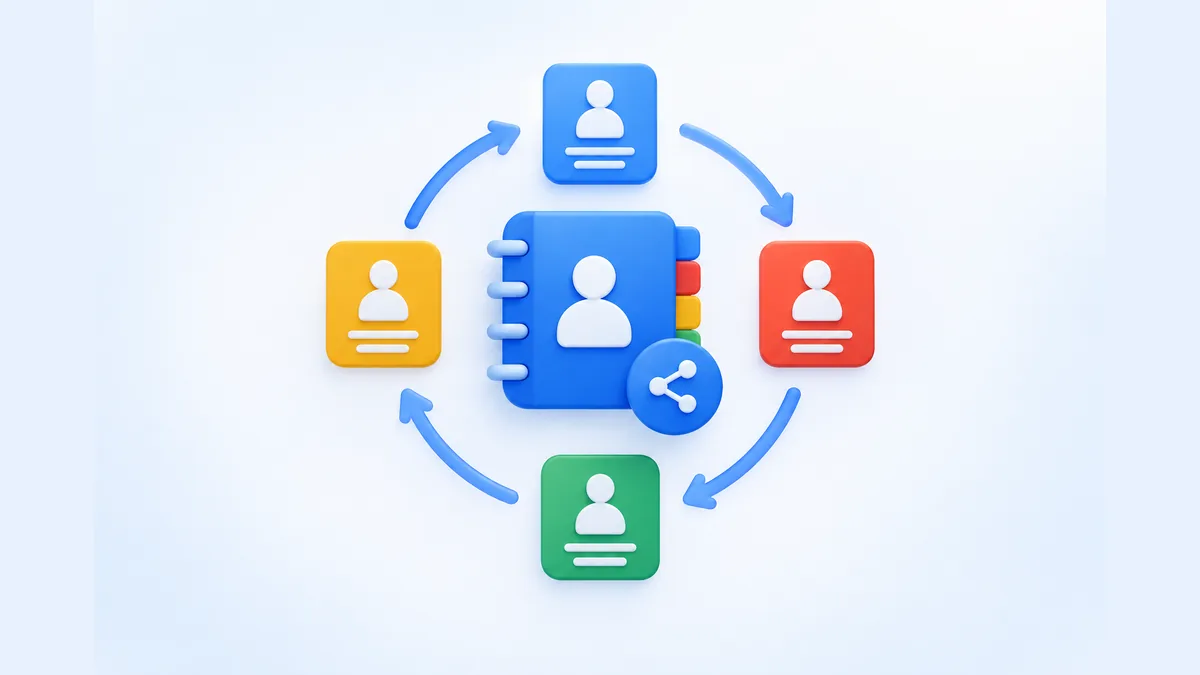
Your team may need contact details not only for colleagues, but also for customers, partners, and suppliers. Jointly managed contact lists can reduce the number of conflicting versions circulating in emails or spreadsheets.
Shared Contacts for Gmail® is a third-party application, not a product developed by Google or a native Google Workspace feature. The provider is Gapps Experts Inc.; its current website lists the product as ContactsFlow™ (formerly Shared Contacts for Gmail™). We retain the product name used in the original guide so it remains identifiable. Product names and trademarks belong to their respective owners.
Workspace Directory and shared external contacts
Google Workspace Directory is your organization's directory: it can contain users, groups, and other directory data managed by an administrator. It is not true that it can contain only internal users: Google functionality also allows you to manage shared external contacts, for example through the Domain Shared Contacts API.
Directory is not the same as team-wide, delegated editing of personal labels in Google Contacts. Shared Contacts for Gmail may offer this type of sharing workflow, with separate permissions and a subscription from the provider. First assess whether the native directory or your existing CRM is sufficient; only then choose an additional application.
Why might it be useful?
Shared contact lists
Create separate labels/lists for customers, partners, or suppliers. According to the provider's description, lists can be shared with users and Google groups. Adapt the management of group members and group-level permissions to your chosen plan and company configuration.
Synchronization and integrations
The provider's current product description mentions two-way Google Contacts synchronization, Gmail access, Android/iOS apps, and Outlook and mobile connectivity. Some plans offer a browser extension, a Workspace add-on, a Zapier integration, or an API.
This does not mean that every feature works on every plan, on every platform, and immediately. Google Account sync settings, mobile permissions, the Outlook version, and the installed add-on also matter. The provider also ties immediate Google Contacts updates to a separate Chrome extension; do not assume this applies to every device. Run a test to verify update times in your environment.
Permissions and data protection
The provider describes list ownership, view-only, editing, deletion, and resharing permissions. Available roles and field-level restrictions may depend on the plan. Grant the minimum access necessary, and specifically check who is authorized to delete or reshare the list.
The integration does not automatically guarantee security or regulatory compliance. Shared contacts may contain personal data; your organization must establish the purpose and legal basis for processing, as well as access and retention rules.
When should you use it?
- Simple customer contact list: when your team needs shared contact details but does not need a full CRM workflow. It does not automatically replace sales records, customer history, or task management.
- Supplier contacts: procurement and logistics teams can access partners' contact details from an approved list with a designated data owner.
- Project teams: contact details for internal and external project participants can be managed in a shared list. Share only the necessary data with external recipients, with appropriate authorization.
These are illustrative business scenarios, not customer references. The benefits are organized sharing, less manual list reconciliation, and collaboration with manageable permissions; results are not guaranteed for every organization.
Step-by-step implementation
1. Pre-installation checks
- Open the provider's official website and find the current Marketplace listing from there. Verify the provider, not just the product name.
- Review the current list of plans and features. Clarify subscription fees, the trial period, billing terms, and required user licenses before installation; this guide does not publish unapproved prices.
- Read the privacy policy and the contractual/data processing terms. The provider describes permissions relating to contact, user, and directory data; also check the actual permissions screen during installation.
- Consult your Workspace administrator about application approval, OAuth access, and individual or organization-wide installation. Do not approve unfamiliar or unjustified permissions.
2. Organize contacts
- In Google Contacts, select the contacts you are authorized to share.
- Organize them under a descriptive label, such as Customers or Suppliers. Do not accidentally share your entire personal address book.
- Clean up outdated and duplicate data; first create an export that complies with your company's retention policies.
3. Share with your team
- Select the label/list in the provider's interface.
- Open the Share action.
- Add the approved colleagues or Google group. Based on the currently verified description, we do not claim that the direct organizational unit sharing mentioned in the source is a generally available feature; clarify this with the provider if you need it.
4. Configure access
Distinguish between colleagues with read-only access and editors who maintain the data. Grant deletion and resharing permissions only when justified. Assign a list owner and document the process for revoking access when employees leave.
5. Test and use
- Use a designated test list to try Gmail's address autocomplete and check how contacts appear in Google Contacts.
- Check access for both an authorized and an unauthorized colleague.
- Verify mobile and Outlook connectivity on the specific device, according to your plan and the provider's instructions.
- Modify a test contact and measure how long it takes for the change to appear; also test deletion and recovery options.
- Extend use to additional lists only after a successful test. Implementation time depends on your environment; it is not guaranteed to take just a few minutes.
Summary and points to verify
Shared Contacts for Gmail / ContactsFlow can complement Workspace Directory if your team needs to maintain external contacts jointly. Checking the appropriate plan, permissions, data protection terms, and synchronization on each device is essential.
Clarify before implementation: compatibility with your specific Outlook version, update times, organizational unit management, exact pricing, and data processing terms. Do not make promises about these that assume they apply to every environment.
Sources
- Google Workspace Directory overview
- Provider's frequently asked questions
- Current features and subscription plans
We can help you plan your company directory and access permissions. Let's discuss your Google Workspace needs.