What changed, and why might the old connection no longer work?
For Google Workspace accounts, traditional “less secure app” sign-in using a username and regular account password has been discontinued. Google's current documentation specifies May 1, 2025; this should not be described as an upcoming change or as a general January 2025 deadline.
For a supported Outlook connection, use Google's sign-in and authorization flow with OAuth authentication. OAuth is not the same as specifying an IMAP server: IMAP is the protocol for accessing email, while OAuth is the method for granting access.
1. Administrator checks for Google Workspace
- Verify that the user has an active account, an appropriate Workspace license, and the Gmail service enabled.
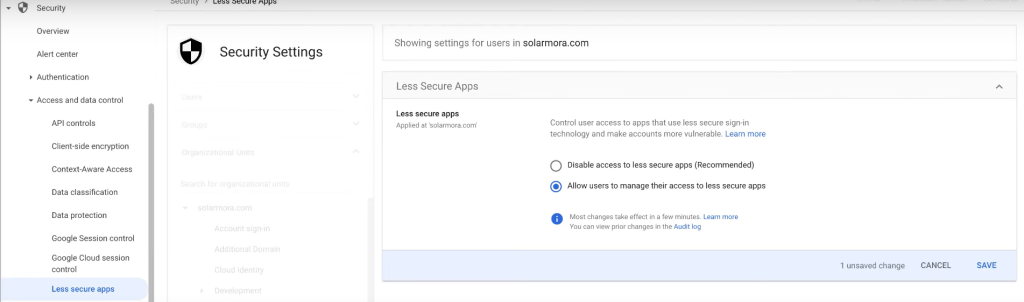
- In Gmail's end-user access settings, check the organization's policy for IMAP and permitted clients. The exact path and permission depend on the current Admin console interface.
- Under API controls/app access policies, check whether the organization is blocking the required Microsoft Outlook OAuth app. Allow only the necessary, verified app; do not broadly grant access to all third-party apps.
- Check the policies for 2-Step Verification, sign-in, and any Context-Aware Access rules. OAuth cannot bypass these.
The old “less secure apps” toggle is no longer the solution. There is no need to disable 2-Step Verification across the board, and you should not do so.
Google: Set up Gmail with a third-party email client
Personal Gmail and business Workspace: different settings
For personal Google Accounts, Gmail IMAP access has been always on since January 2025; the old on/off toggle is no longer available. For business Workspace accounts, administrators can still control organizational access. Do not present a personal Gmail menu option as a general administrative instruction for businesses.
Google: Add Gmail to another email client
2. Prepare Outlook
The label “Outlook 2016 or later” alone does not establish that a suitable, supported Gmail OAuth connection is available. The Windows/macOS platform, classic/new Outlook, edition, installed updates, and organizational policies all matter. Use a currently supported, up-to-date version and follow the corresponding Microsoft instructions.
Before removing an account, check local PST archives, locally stored email, drafts, contacts, and calendars. Back up data as needed. Email that can be resynchronized from the cloud is not the same as data stored only locally.
3. Reconnect your Gmail account using OAuth
- Open and update Outlook. Determine whether you are using new or classic Outlook.
- Check the old connection and your local backup. If reconnecting requires it, remove the faulty account configuration—do not automatically delete the data files.
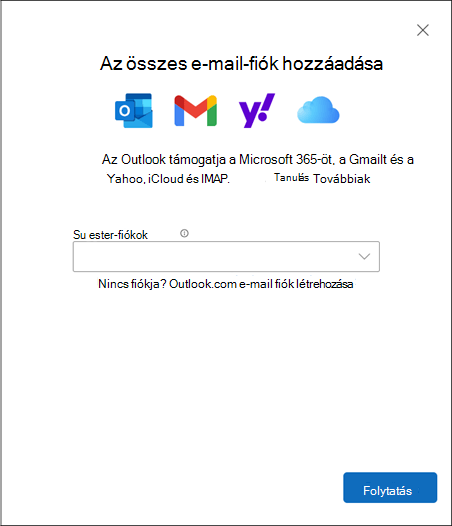
- Choose the option to add an account. In new Outlook, this is located around Settings → Accounts → Your accounts; in classic Outlook, it is typically under File → Add Account.
- Enter your full Gmail/Workspace email address and start the Google Account sign-in process. Do not automatically choose the old manual IMAP setup using a regular password.
- In the Google sign-in window/browser, verify that the Google address is genuine and that you are using the correct account. Complete the required 2-Step Verification.
- Read the access permissions requested by the Microsoft app. Authorize only the verified app and permissions approved by your organization.
- Finish adding the account. Allow time for synchronization, then test sending and receiving separately.
- Check folders/labels, drafts, and any additional features you need. Working email does not automatically establish that contacts and calendars synchronize fully or identically across all versions.
Microsoft: Add a Gmail account to Outlook for Windows
2-Step Verification and app passwords
When using OAuth, Google handles sign-in and the second verification step. There is no need to recommend a general “app password workaround” in place of a regular password.
However, it is also incorrect to claim that all app passwords have been discontinued for every account. Google's documentation still describes app passwords under certain conditions: 2-Step Verification is required, but the option may be unavailable because of an organizational account, Advanced Protection, or other security conditions. This option should only be considered if the account's policies and the supported documentation for the specific device permit it. OAuth is the primary approach for modern Outlook.
Google: Sign in with app passwords—conditions and limitations
Troubleshooting
| Symptom | What should you check? | Safe next step |
|---|---|---|
| Repeated password prompts | Old connection using a regular password, incorrect account, outdated client | Reconnect using supported OAuth authentication; update the client |
| Administrator block | OAuth app policy, IMAP, Gmail, user permissions | Investigate the specific block with the administrator |
| No Google window appears | Incorrect setup method, client version, browser/network policy | Follow Microsoft's guide for the exact Outlook version |
| Signed in, but not synchronizing | IMAP/client policy, connection, required scope, and synchronization status | Check the error message and administrator logs; do not delete cloud data |
| Missing contacts or calendar | Differences in features supported by the client and connection type | Investigate the specific Microsoft/Google synchronization solution |
Do not collect account passwords, tokens, or complete emails in a public support ticket. Revoked OAuth access may require reauthorization; simply changing the password does not fix every issue.
Summary
The goal is a supported Outlook version, verified Google OAuth sign-in, and Gmail access permitted by your organization. Protect local data before removing the faulty connection, then verify the result by actually sending and receiving email.
Having trouble connecting Gmail and Outlook? Contact our experts!
Screenshots—historical interface examples